
Break-Glass Accounts Done Right: Securing Emergency Access in Microsoft Entra

Emergencies happen every day. Most of the time, they happen to someone else.
Until the day they happen to you - then what?

We all know things can go wrong, but most organizations do not spend much time thinking about what happens when they lose access to their own environment. That is understandable right up until the moment a misconfiguration, outage or any other emergency turns it from a theoretical problem into a very real one.
That is why emergency access matters.
In this post, I will walk through my recommendations for creating, securing, monitoring, and managing emergency access accounts, also known as break-glass accounts, in Microsoft Entra.
These recommendations are based on a mix of general best practices and my own implementation experience across multiple clients, from SMBs to large enterprise environments.
Let’s jump in!
Table of Contents
The Idea Behind Break-glass Accounts in Microsoft Entra
In one sentence:
A break-glass account provides full Global Administrator access, giving you a way to regain control of your environment in an emergency.
These are standalone accounts with no employee attached to them. That is intentional. Access should not depend on a specific person being available, reachable, or even employed.
And yes, it should still work if your admin gets hit by a bus tomorrow.
Thankfully, that is not the most common scenario.
In practice, break-glass accounts are most often used to recover from human error. A Conditional Access policy is deployed a bit too aggressively, not tested thoroughly, and suddenly every admin is locked out of the tenant.
Other common scenarios include:
Personnel being unavailable
System outages
Compromised admin accounts
Network or hardware failures
Natural disasters
Depending on the environment, some are more likely than others, but the outcome is the same:
You need a guaranteed way back in.
That also means these accounts sit at the very last layer of access. And that changes how we treat them.
It is no longer enough to have “a Global Administrator with a long password excluded from MFA.” That approach is outdated and risky.
These accounts need to be designed, secured, and monitored like critical infrastructure.
The Dark, Scary and Sad Truth
On paper, emergency access accounts sound like a no-brainer, especially for IAM folks.
In reality, they are often missing, or worse, unusable.
Across the environments I work with, most organizations fall into one of three categories:
No break-glass accounts at all
A single account created years ago and never tested
Account(s) exist, but there is no monitoring or alerting on their use
This is especially common in SMB environments, where they are arguably even more critical. Though even large organizations with thousands of users are not immune to this.
While I've been unable to find any research that provides statistics, I can extrapolate my own experiences which shows that proper implementation is the exception rather than the rule.
Another important factor is that guidance continues to evolve.
With Microsoft’s Secure Future Initiative enforcing MFA for admin portals and CLI tools, the old approach of simply excluding these accounts from everything no longer works.
Requirements change. Threats change. Platform behavior changes.
Which means your break-glass setup cannot be static.
It needs to be tested, reviewed, and adjusted regularly.
Emergency Accounts Best Practices
Now that we are aligned on what these accounts are, and the fact that they are not as widely implemented as they should be, let’s go through my thoughts and recommendations.
From naming to monitoring, this is how I approach emergency access accounts in practice.
Naming
Naming is one of those topics that gets discussed far more than you would expect.
Over the years, the guidance has shifted. As both defenders and attackers have become more mature, so has the thinking around how these accounts should be named.
A few years ago, the common advice was to make them blend in. Give them names that would not stand out during reconnaissance.
Today, that approach has largely fallen out of favor.
Security by obscurity does not provide meaningful protection here, and in some cases, it makes things worse. Your own admins and SOC analysts need to be able to quickly identify these accounts without guessing or memorizing naming tricks.
Attackers are not targeting names, they are targeting privilege.
So keep it simple.
Use descriptive names.
Also, use the default onmicrosoft.com domain exclusively for these accounts.
Examples:
If an attacker is in a position where the name of the account matters, you already have bigger problems.
Permissions
These accounts should be assigned Global Administrator as a direct, permanent, active role.
They should not be eligible, time-limited or dependent on any activation workflow that may or may not function during an emergency.
The whole point is that the account must work when everything else does not.
These accounts should also be included in your total number of Global Administrators, with the recommendation being a maximum of 4 global administrators in an organization.
If you have two break-glass accounts, that usually leaves room for only a small number of user-assigned Global Administrators.
In practice, that should not be an issue, Global Administrator is very rarely the right role for any day-to-day operation regardless.
To Group or Not To Group
One of the more debated design choices is whether break-glass accounts should exist on their own, or be placed inside a group that is then used for targeting and exclusions across policies.
As with anything in life, both options have their pros and cons, providing different experiences, risks and implementation requirements
Pros and Cons of the group approach:
Pros | Cons |
|---|---|
Easier inclusion and exclusion across Conditional Access and authentication method policies | Adds an extra layer that must be secured and monitored |
Enhanced scoping capabilities | Increased complexity |
Stronger control options depending on implementation | Potentially increased attack surface if not properly protected |
Pros and Cons of the no-group approach:
Pros | Cons |
|---|---|
Simpler design with fewer moving parts | Limited scoping capabilities |
Reduced attack surface | More complex handling of authentication methods |
Higher risk of misconfiguration due to increased policy sprawl |
Group Approach
Using a group allows you to directly control which authentication methods are available to the emergency accounts.
This becomes especially powerful with passkey profiles, where you can scope device-bound passkeys to a specific group and restrict usage to approved hardware using AAGUIDs.
You also gain additional protection by making the group role-assignable, which ensures that only a Group Owner or a Privileged Role Administrator (least privilege) can modify membership, both in- and outside of RMAUs.
In short, the group becomes a central control point for both access and restrictions.
No-Group Approach
Without a group, achieving the same level of control becomes more complicated.
You need to explicitly scope multiple policies around the individual break-glass accounts, often relying on Conditional Access and custom authentication strengths to enforce behavior.
This increases the number of policies you need to manage, and with that, the risk of misconfiguration.
While the design is simpler on paper, it can become harder to maintain correctly over time.
My recommendation: Use the group based apparoch with a role-assignable security group with assigned membership.
Yes, it adds a layer. But it is a layer that gives you stronger control, better scoping, and more predictable behavior across your authentication and Conditional Access design.
In this case, the added structure is worth it.
Restricting Management with RMAU
Whether you use standalone accounts or place them inside a role-assignable group, one thing remains the same: At their core, these are still user objects and group objects inside your tenant.
And by default, that means they can potentially be modified, managed, or even deleted by anyone with sufficient permissions.
That is not a great situation for something designed to be your last line of access.
This is where Restricted Management Administrative Units (RMAU) come in.
By placing your break-glass accounts, and ideally the group containing them, inside an RMAU, you can tightly control who is allowed to manage them. When combined with Privileged Identity Management (PIM), Authentication Contexts, and Conditional Access, this becomes a very strong control layer.
If you are not already using RMAUs, this is one of the biggest security upgrades you can make to your emergency access design.
I have written a dedicated deep dive on this topic here:
Start by creating a Restricted Management Administrative Unit and add:
Your break-glass user accounts
Your break-glass group


Create a Custom Role
Next, create a custom role that includes only the permissions required to manage users and groups within the RMAU to keeping it focused, avoiding broad permissions.

Configure PIM for the Role
Assign the new custom role through Privileged Identity Management (PIM) and configure strict activation requirements.
Recommended settings:
Maximum activation duration: 1 hour
Require authentication context
Require approval
Require justification
If your organization uses an ITSM platform like ServiceNow, you can also require ticket references. Otherwise, this is usually unnecessary.

If you want a deeper dive into how Authentication Contexts and PIM interacts, I have also covered that here: Mastering Microsoft Entra Authentication Contexts – Part 2: Real-World Access & Action Controls
Enforce with Conditional Access
To complete the setup, enforce strong Conditional Access requirements for the authentication context used during role activation.
Recommended configuration:
Target
All users
Authentication context used on the role
Grant
Require phishing-resistant MFA
Require compliant device
Session controls
Sign-in frequency: every time

What This Gives You
If someone attempts to modify one of the protected accounts or the group without the required permissions, they will be blocked, and the portal will clearly indicate that the object is protected.

With this setup, management of your break-glass accounts becomes:
Tightly controlled
Time-limited
Approval-based
Fully auditable
In other words, access is only granted when it is explicitly needed, and only under strict conditions, which is exactly how management of emergency access should work.
Authentication Methods
As mentioned earlier, we need to be very deliberate about which authentication methods are allowed for break-glass accounts.
These accounts require the strongest possible authentication, but without depending on any single person, device, or location.
That immediately rules out a lot of common options.
Anything tied to:
A phone
An email inbox
A specific computer
A certificate lifecycle
…can become a problem during an emergency.
What fits much better is a hardware security key using FIDO2-based passkeys, such as YubiKeys or Token2 keys.
These provide phishing-resistant authentication without relying on user-bound devices or services.
With hardware security keys, access is tied to something physical that you control and can store securely, this makes them ideal for emergency scenarios.
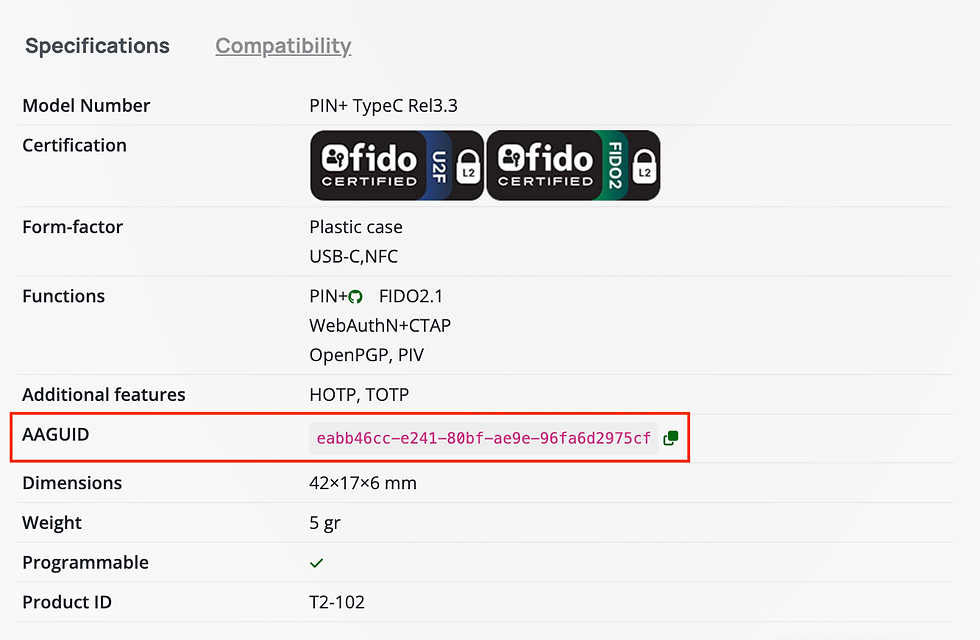
Each key type has a unique identifier (AAGUID), which can be used to restrict exactly which hardware is allowed.
You can find the AAGUID values on the vendor’s website.

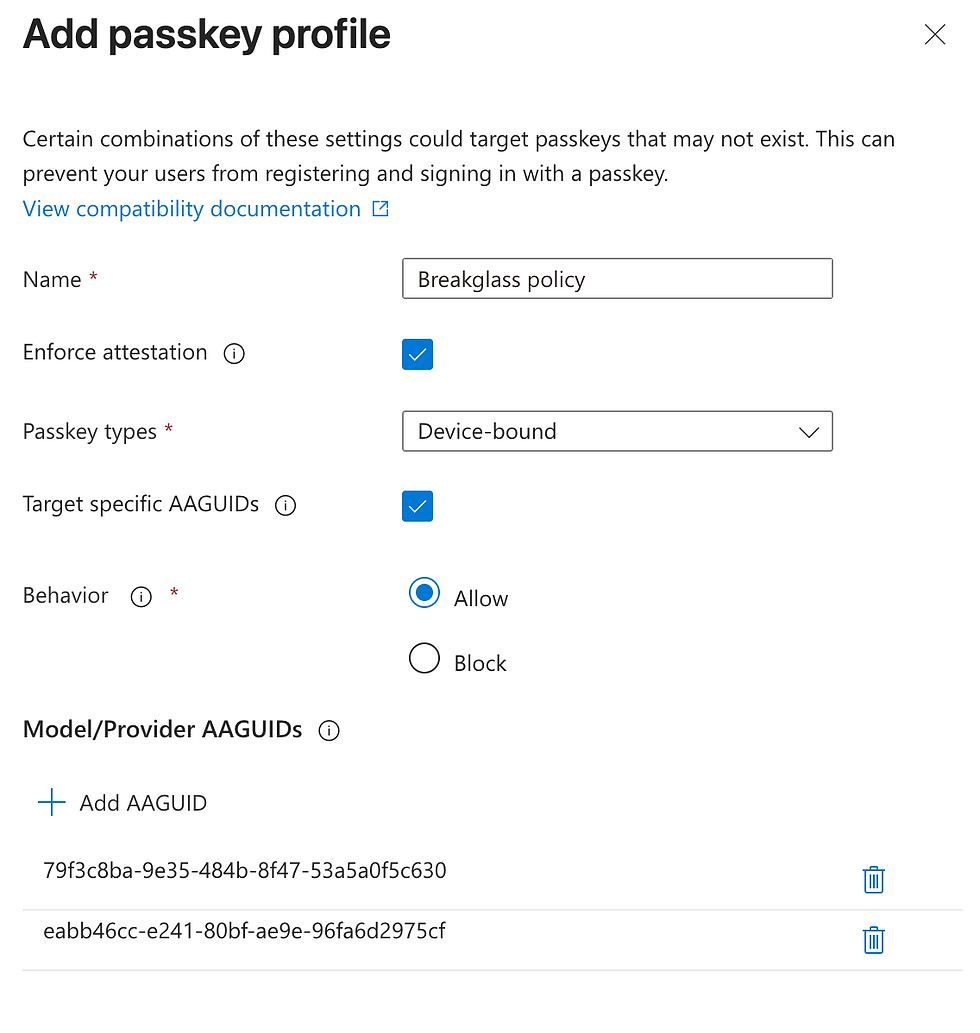
Passkey Profile
Create a passkey profile scoped to the break-glass group and configure it to allow only the required AAGUID values.

Exclusions
Then exclude the same group from all other authentication method policies:

Recommendation
Exclude the break-glass group from all authentication methods except a passkey policy that allows only approved AAGUIDs.
I also recommend using hardware keys from different providers for each account.
That way, a failure or issue with one type of key does not impact both accounts.
This ensures the accounts can only authenticate using the specific hardware keys you have chosen, while maintaining resilience across accounts.
Why This Matters
This setup ensures:
Authentication is phishing-resistant
Access does not depend on a person or personal device
Only approved physical keys can be used
There is some overlap with the authentication strength we will configure next. Technically, you no longer need to define AAGUIDs in both places, that said, I still tend to include them in both.
Partly out of habit, partly because I prefer security controls to be layered rather than minimal.
Authentication Strength
To further control how these accounts authenticate, we should define a custom authentication strength and enforce it through Conditional Access.
This allows us to explicitly require the exact authentication method we expect for break-glass usage.
While the passkey profile already does most of the heavy lifting, authentication strength gives us a clean and enforceable way to tie that requirement into policy.


Strictly speaking, it is no longer necessary to include specific AAGUID restrictions here if they are already enforced through the passkey profile.
That said, I still tend to include them.
Partly out of habit, partly because I prefer layering controls rather than relying on a single configuration point.
Conditional Access Policies
A few years ago, the guidance was simple:
Exclude break-glass accounts from all Conditional Access policies to guarantee access during emergencies.
That approach no longer holds up.
As mentioned previously, with Microsoft’s Secure Future Initiative enforcing MFA for admin portals and CLI access, doing nothing is no longer an option. Even break-glass accounts must meet authentication requirements.
At the same time, relying solely on built-in MFA requirement is not enough, It doesn't give us control over the actual authentication that happens.
That is why we use Conditional Access, to define exactly what we expect.
Recommendation
Use two dedicated Conditional Access policies:
One to enforce authentication
One to control session behavior
We already have everything we need from earlier steps, the break-glass group, the authentication strength & the authentication methods
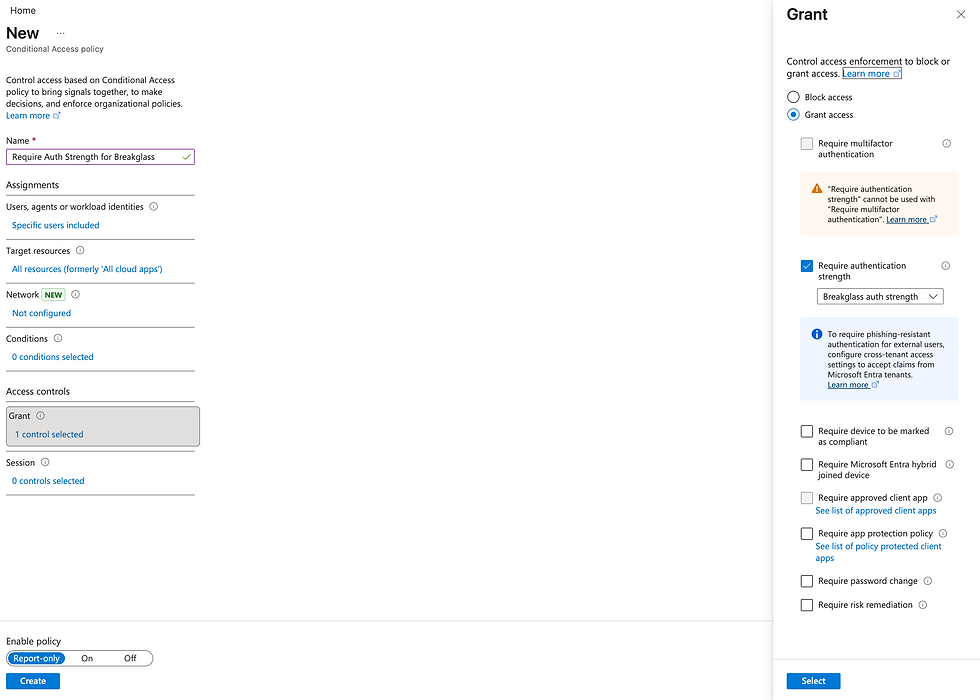
Policy 1: Require Authentication Strength
Target
Break-glass group
All cloud resources
Grant
require break-glass authentication strength
Policy 2: Control Session Behavior
Target
Break-glass group
All cloud resources
Session controls
Sign-in frequency: 4 hours
Persistent browser session: never persistent

Why This Works
Together, these two policies ensure:
The strongest possible authentication is always required
Access is possible from any device (critical in an emergency)
Sessions are short-lived, reducing token exposure and compromise risk
Critical Detail
The break-glass group should be excluded from all other Conditional Access policies.
When running a What If evaluation, these two policies should be the only ones applying to the accounts.
If anything else shows up, fix it.
Because the only thing worse than not having a break-glass account…
is having one that does not work when you actually need it.
Monitoring, Reporting & Procedures
At this point, we have created the accounts, secured how they are accessed, and locked down how they are managed.
Now we need to make sure of two things:
We know the moment they are used, or modified
They actually work when we need them
This part is not the most exciting, but it is just as important, arguably even more so.
Because a perfectly designed break-glass account that is never monitored or tested is not a safety net. It is a false sense of security.
Before diving in, one important point:
You do not need a SIEM like Microsoft Sentinel to monitor these accounts.
Sentinel can absolutely add value with analytics and automation, but most organizations, especially in the SMB space, do not need it just for this purpose. A simple setup with Log Analytics, alert rules and an action group will get you very far.
I will walk through two approaches: one using only a Log Analytics Workspace, and one using Sentinel for those who want to go this route, or already utilizes it.
Both start the same way.
Sending Entra Logs to Log Analytics
To monitor activity, we first need to send the relevant logs from Entra to a Log Analytics Workspace.
In the Entra admin portal, navigate to Monitoring & health → Diagnostic settings, and create a new diagnostic setting.
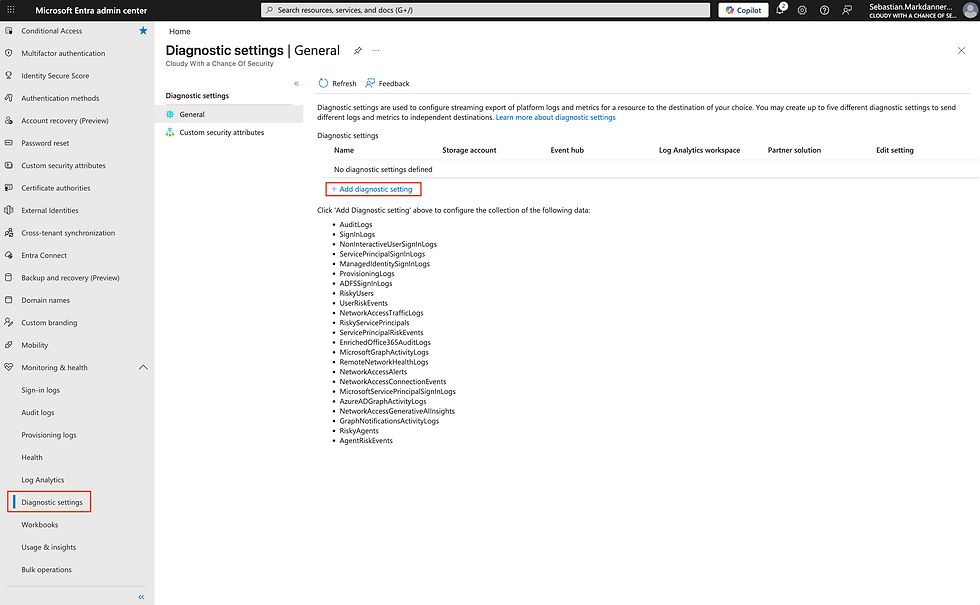
From there, select your Azure subscription and Log Analytics Workspace, and choose the AuditLogs and SignInLogs categories.

That is all you need for this use case.
You will notice I am not including things like NonInteractiveSignInLogs here. That is intentional. The goal is to monitor actual usage and changes related to the emergency accounts, not to build a full logging pipeline.
This could be a part of a larger log stream if you have it in place, or need it. For this purpose, less is fine.
Option 1: Log Analytics Workspace & Alert Rule
This is the option most of my clients go with.
It is simple, cost-effective, and does exactly what we need.
Before creating the alert, you can optionally validate that logs are coming in by opening the Logs section in your workspace and running a query. Just keep in mind that it can take a bit of time after enabling diagnostics before data starts flowing consistently, up to 48 hours.
Within Microsoft Azure, we need to configure an Alert rule with a monitoring query and an action group.
OPTIONAL: Testing Entra Logs
Navigate to your Log Analytics Workspace and open the Logs section to review the data being collected from Entra.
You can use the same KQL query that we’ll use later in the alert rule.

Creating Alert Rule
Within the Log Analytics Workspace, navigate to Alerts under the Monitoring section, and click + Create → Alert rule.

Alert Rule Query
Choose the Custom log search signal, add the KQL query below, and set the measurement frequency as low as possible (ideally 1 minute).

Log Analytics Query
let BreakGlassUserIds = dynamic([
    "EA 01 Object ID",
    "EA 02 Object ID"
]);

let SigninEvents =
    SigninLogs
    | where UserId in (BreakGlassUserIds)
    | project
        TimeGenerated,
        SourceTable = "SigninLogs",
        EventUid = tostring(Id),
        ActivityType = "Sign-in activity",
        MatchType = "Account sign-in",
        WatchedAccountIds = UserId,
        WatchedAccountUPNs = UserPrincipalName,
        InitiatingUserId = UserId,
        InitiatingUserPrincipalName = UserPrincipalName,
        InitiatingAppDisplayName = AppDisplayName,
        TargetUserIds = UserId,
        TargetUserPrincipalNames = UserPrincipalName,
        TargetDisplayNames = UserDisplayName,
        IPAddress,
        Location = tostring(Location),
        ResultType = tostring(ResultType),
        ResultDescription = tostring(ResultDescription),
        OperationName = "User sign-in";

let AuditExpanded =
    AuditLogs
    | extend EventUid = tostring(Id)
    | extend
        InitiatingUserId = tostring(InitiatedBy.user.id),
        InitiatingUserPrincipalName = tostring(InitiatedBy.user.userPrincipalName),
        InitiatingAppDisplayName = tostring(InitiatedBy.app.displayName),
        AuditIPAddress = tostring(InitiatedBy.user.ipAddress)
    | mv-expand TargetResource = TargetResources to typeof(dynamic)
    | extend
        TargetUserId = tostring(TargetResource.id),
        TargetUserPrincipalName = tostring(TargetResource.userPrincipalName),
        TargetDisplayName = tostring(TargetResource.displayName)
    | extend
        InitiatorMatched = iif(InitiatingUserId in (BreakGlassUserIds), 1, 0),
        TargetMatched = iif(TargetUserId in (BreakGlassUserIds), 1, 0)
    | where InitiatorMatched == 1 or TargetMatched == 1;

let AuditEvents =
    AuditExpanded
    | summarize
        TimeGenerated = max(TimeGenerated),
        InitiatorMatchedMax = max(InitiatorMatched),
        TargetMatchedMax = max(TargetMatched),
        WatchedInitiatorIds = make_set_if(InitiatingUserId, InitiatorMatched == 1 and isnotempty(InitiatingUserId)),
        WatchedTargetIds = make_set_if(TargetUserId, TargetMatched == 1 and isnotempty(TargetUserId)),
        WatchedInitiatorUPNs = make_set_if(InitiatingUserPrincipalName, InitiatorMatched == 1 and isnotempty(InitiatingUserPrincipalName)),
        WatchedTargetUPNs = make_set_if(TargetUserPrincipalName, TargetMatched == 1 and isnotempty(TargetUserPrincipalName)),
        WatchedTargetDisplayNames = make_set_if(TargetDisplayName, TargetMatched == 1 and isnotempty(TargetDisplayName)),
        InitiatingUserId = any(InitiatingUserId),
        InitiatingUserPrincipalName = any(InitiatingUserPrincipalName),
        InitiatingAppDisplayName = any(InitiatingAppDisplayName),
        TargetUserIdsSet = make_set_if(TargetUserId, TargetMatched == 1 and isnotempty(TargetUserId)),
        TargetUserPrincipalNamesSet = make_set_if(TargetUserPrincipalName, TargetMatched == 1 and isnotempty(TargetUserPrincipalName)),
        TargetDisplayNamesSet = make_set_if(TargetDisplayName, TargetMatched == 1 and isnotempty(TargetDisplayName)),
        IPAddress = any(AuditIPAddress),
        ResultType = any(tostring(Result)),
        ResultDescription = any(tostring(ResultReason)),
        OperationName = any(tostring(OperationName))
      by EventUid
    | extend
        SourceTable = "AuditLogs",
        ActivityType = "Audit activity",
        MatchType = case(
            InitiatorMatchedMax == 1 and TargetMatchedMax == 1, "Account initiated and targeted by activity",
            InitiatorMatchedMax == 1, "Account initiated activity",
            TargetMatchedMax == 1, "Account targeted by activity",
            "Audit activity"
        ),
        WatchedAccountIds = strcat_array(set_union(WatchedInitiatorIds, WatchedTargetIds), ", "),
        WatchedAccountUPNs = strcat_array(set_union(WatchedInitiatorUPNs, WatchedTargetUPNs), ", "),
        TargetUserIds = strcat_array(TargetUserIdsSet, ", "),
        TargetUserPrincipalNames = strcat_array(TargetUserPrincipalNamesSet, ", "),
        TargetDisplayNames = strcat_array(TargetDisplayNamesSet, ", "),
        Location = ""
    | project
        TimeGenerated,
        SourceTable,
        EventUid,
        ActivityType,
        MatchType,
        WatchedAccountIds,
        WatchedAccountUPNs,
        InitiatingUserId,
        InitiatingUserPrincipalName,
        InitiatingAppDisplayName,
        TargetUserIds,
        TargetUserPrincipalNames,
        TargetDisplayNames,
        IPAddress,
        Location,
        ResultType,
        ResultDescription,
        OperationName;

union isfuzzy=true SigninEvents, AuditEvents
| sort by TimeGenerated desc
Set the Alert Logic
Further down in the Conditions section, configure the alert logic.
Set the threshold value to 0 to ensure the alert triggers on any activity.

Create and Add Action Group
Within the Actions tab, click Create action group.
Provide the required basic information.


Add Notification settings There should be at least one shared mailbox that is always monitored.
Phone and app notifications can be added as well, but should be tied to individual users.


Review the configuration and create the action group.

Add Email Subject Provide a custom email subject for notifications. This helps quickly identify the alert without needing to open it.
![Alert rule creation interface showing action group "we-emergencyaccess-AG" with Azure app, email, SMS. Email subject: [CRITICAL] Emergency Access Activity.](https://static.wixstatic.com/media/390163_73babb69aa4c445cb5512edde530dcd1~mv2.png/v1/fill/w_980,h_407,al_c,q_90,usm_0.66_1.00_0.01,enc_avif,quality_auto/390163_73babb69aa4c445cb5512edde530dcd1~mv2.png)
Provide Details for Alert Rule
Within the Details tab, configure the required settings, including severity, name, and description.
Set the identity to use a Managed Identity. This ensures the query continues to run correctly, as the default behavior depends on the permissions of the last user who modified the rule.
Make sure the system-assigned managed identity has the required permissions:
Log Analytics Reader on the Log Analytics Workspace (to run the query)
Reader on the Resource Group where the Action Group is located (to execute the action)
Without these permissions, the alert rule may fail to run or trigger actions as expected.

After a final review and creation, you will have monitoring and alerting in place for sign-ins, changes, and usage of your emergency access accounts.
Option 2: Log Analytics Workspace & Sentinel
This option is also not particularly heavy on configuration, but it does come with a higher cost compared to a simple alert rule. It should mainly be considered if your organization already uses Microsoft Sentinel, or have data ingestions included in your licenses.
These are the steps to set it up:
Create a Sentinel Instance
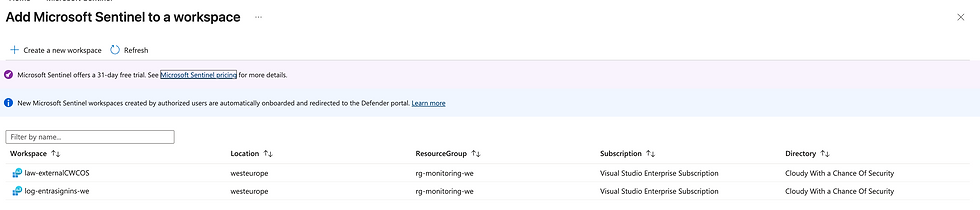
Within the Azure portal, search for and navigate to Microsoft Sentinel.
Click + Create, select the Log Analytics Workspace you want to use, and click Add.

Installing the Entra Connector
Within the newly created Sentinel instance, navigate to the Content hub, search for Microsoft Entra ID, and click Install.


Creating the Analytics Rule
After installing the connector, navigate to the Analytics menu and click + Create → Scheduled query rule.
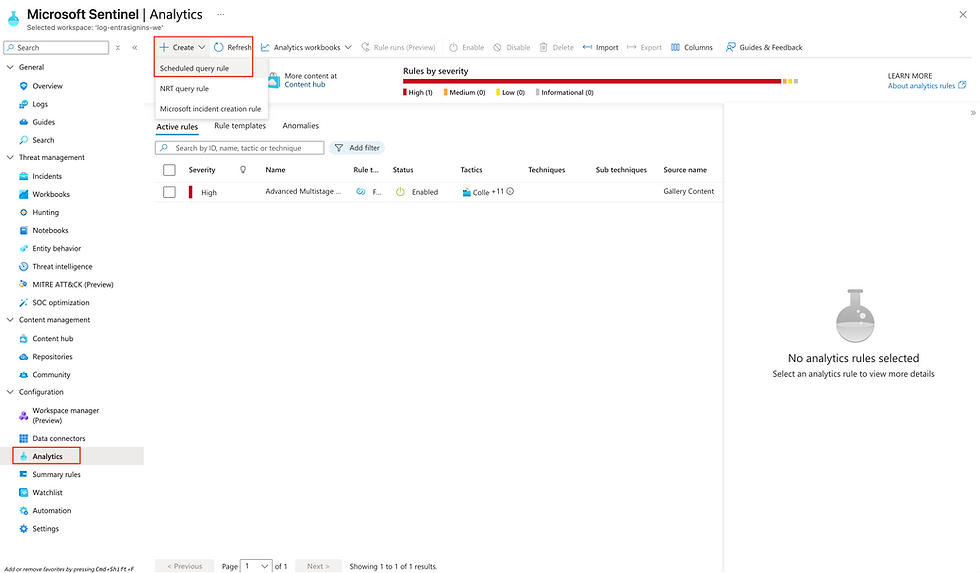
Provide the required general information, including a name for the rule and the severity level.

Configure the Query
Add the query below and test the output.
Set the schedule and lookup window as low as possible, typically 5 minutes.
You should also:
Set the threshold to greater than 0
Configure event grouping to trigger an alert for each event


Sentinel Analytics Rule Query
let BreakGlassUserIds = dynamic([
    "EA 01 Object ID",
    "EA 02 Object ID"
    ]);

let SigninEvents =
    SigninLogs
    | where UserId in (BreakGlassUserIds)
    | project
        TimeGenerated,
        SourceTable = "SigninLogs",
        EventUid = tostring(Id),
        ActivityType = "Sign-in activity",
        MatchType = "Account sign-in",
        WatchedAccountId = UserId,
        WatchedAccountUPN = UserPrincipalName,
        InitiatingUserId = UserId,
        InitiatingUserPrincipalName = UserPrincipalName,
        InitiatingAppDisplayName = AppDisplayName,
        TargetUserId = UserId,
        TargetUserPrincipalName = UserPrincipalName,
        TargetDisplayName = UserDisplayName,
        IPAddress,
        Location = tostring(Location),
        ResultType = tostring(ResultType),
        ResultDescription = tostring(ResultDescription),
        OperationName = "User sign-in",
        AccountCustomEntity = UserPrincipalName,
        IPCustomEntity = IPAddress;

let AuditEvents =
    AuditLogs
    | extend
        EventUid = tostring(Id),
        InitiatingUserId = tostring(InitiatedBy.user.id),
        InitiatingUserPrincipalName = tostring(InitiatedBy.user.userPrincipalName),
        InitiatingAppDisplayName = tostring(InitiatedBy.app.displayName),
        AuditIPAddress = tostring(InitiatedBy.user.ipAddress)
    | mv-expand TargetResource = TargetResources to typeof(dynamic)
    | extend
        TargetUserId = tostring(TargetResource.id),
        TargetUserPrincipalName = tostring(TargetResource.userPrincipalName),
        TargetDisplayName = tostring(TargetResource.displayName)
    | extend
        InitiatorMatched = InitiatingUserId in (BreakGlassUserIds),
        TargetMatched = TargetUserId in (BreakGlassUserIds)
    | where InitiatorMatched or TargetMatched
    | summarize
        TimeGenerated = max(TimeGenerated),
        InitiatingUserId = any(InitiatingUserId),
        InitiatingUserPrincipalName = any(InitiatingUserPrincipalName),
        InitiatingAppDisplayName = any(InitiatingAppDisplayName),
        TargetUserId = anyif(TargetUserId, TargetMatched),
        TargetUserPrincipalName = anyif(TargetUserPrincipalName, TargetMatched and isnotempty(TargetUserPrincipalName)),
        TargetDisplayName = anyif(TargetDisplayName, TargetMatched and isnotempty(TargetDisplayName)),
        IPAddress = any(AuditIPAddress),
        ResultType = any(tostring(Result)),
        ResultDescription = any(tostring(ResultReason)),
        OperationName = any(tostring(OperationName)),
        InitiatorMatched = max(toint(InitiatorMatched)),
        TargetMatched = max(toint(TargetMatched))
        by EventUid
    | extend
        SourceTable = "AuditLogs",
        ActivityType = "Audit activity",
        MatchType = case(
                InitiatorMatched == 1 and TargetMatched == 1,
                "Account initiated and targeted by activity",
                InitiatorMatched == 1,
                "Account initiated activity",
                TargetMatched == 1,
                "Account targeted by activity",
                "Audit activity"
            ),
        WatchedAccountId = case(
                       TargetMatched == 1,
                       TargetUserId,
                       InitiatorMatched == 1,
                       InitiatingUserId,
                       ""
                   ),
        WatchedAccountUPN = case(
                        TargetMatched == 1 and isnotempty(TargetUserPrincipalName),
                        TargetUserPrincipalName,
                        TargetMatched == 1 and isnotempty(TargetDisplayName),
                        TargetDisplayName,
                        InitiatorMatched == 1,
                        InitiatingUserPrincipalName,
                        ""
                    ),
        Location = "",
        AccountCustomEntity = case(
                          TargetMatched == 1 and isnotempty(TargetUserPrincipalName),
                          TargetUserPrincipalName,
                          InitiatorMatched == 1 and isnotempty(InitiatingUserPrincipalName),
                          InitiatingUserPrincipalName,
                          TargetMatched == 1 and isnotempty(TargetDisplayName),
                          TargetDisplayName,
                          ""
                      ),
        IPCustomEntity = IPAddress
    | project
        TimeGenerated,
        SourceTable,
        EventUid,
        ActivityType,
        MatchType,
        WatchedAccountId,
        WatchedAccountUPN,
        InitiatingUserId,
        InitiatingUserPrincipalName,
        InitiatingAppDisplayName,
        TargetUserId,
        TargetUserPrincipalName,
        TargetDisplayName,
        IPAddress,
        Location,
        ResultType,
        ResultDescription,
        OperationName,
        AccountCustomEntity,
        IPCustomEntity;

SigninEvents
| union isfuzzy=true AuditEvents
Final Configuration
Configure incident settings and automated response according to your organization’s requirements, and you’re good to go.
Depending on your environment, you may want to integrate runbooks, automation rules, or other response mechanisms. That is outside the scope of this post, but worth considering if you are already working with Sentinel.
Procedures Surrounding Emergency Access Accounts
With all of the technical pieces in place, there are still a few procedures and processes we need to handle.
This is where many implementations fall short. The accounts might be perfectly configured, but without the right processes around them, they are far less useful than intended.
Storing the accounts
We’ve created at least two break-glass accounts for high availability in case of emergencies. That also means we need to be deliberate about how they are stored.
They should not just be loosely put into an envelope in an admin’s bag or something similar. Instead, they need to be stored in separate physical locations where accessibility is ensured, even in disaster scenarios.
Each storage location should contain everything required to use the account: the physical passkey, the PIN, and any additional necessary information. The goal is to avoid relying on any online-accessible documentation during an emergency.
My recommendation is to store one account (passkey + PIN) in a secure on-site location, such as a safe or a server room. The second account should be stored at a different physical location, for example another office or a bank.
The key point is simple: they must always be accessible when needed, but never dependent on a single location.
Testing the accounts
Because of how these accounts are used, testing is not optional—it needs to be part of a recurring process.
It’s not enough to simply verify that the account exists. You need to validate the full flow: can you sign in with the passkey, does the account still have Global Administrator access, is monitoring capturing the sign-in and any changes, and are alerts firing as expected?
In short, you are testing whether the entire setup actually works end-to-end.
My recommendation is to test each account on a 180-day cycle. Some organizations test more frequently, while others never test at all. In my experience, 180 days strikes a good balance between effort and confidence.
Documentation
While documentation is rarely anyone’s favorite task, it is essential in this context.
There needs to be clear documentation describing which accounts are the emergency access accounts, where they are stored, and who has knowledge of and permission to use them.
At first glance, this can feel counterintuitive. We are putting effort into securing the accounts, while also documenting them. The reason this works is because the documentation itself is treated as privileged information and protected accordingly.
Combined with the physical separation of the passkeys, this ensures that access is both controlled and practical when needed.
My recommendation is to keep the documentation minimal but precise: account name, storage location, and authorized personnel. Just as importantly, it needs to be kept up to date.
Training personnel
With documentation in place, the final piece is ensuring that the right people know how to act on it.
Relevant personnel should understand what the accounts are, where they are stored, how to access them, and when they are allowed to be used. This typically includes IAM administrators, as well as roles such as CTO, CISO, CEO, and other key stakeholders depending on the organization.
Some organizations may also choose to include board members or owners.
My recommendation is to include this as part of onboarding for employees in privileged technical roles. It should not automatically be extended to all IT admins unless you have a smaller team with shared responsibilities.
Conclusion: Prepared, Not Panicked
Break-glass accounts are one of those controls that feel unnecessary, right up until the moment they are the only thing that matters.
Throughout this post, the goal hasn’t been to simply create emergency accounts, but to treat them as what they actually are: a critical security boundary. One that must be designed with the same level of care as any production system, if not more.
A properly implemented setup ensures three things:
Access is always possible when everything else fails
That access is tightly controlled and heavily restricted
Every use is visible, monitored, and actionable
What often separates mature environments from the rest isn’t whether break glass accounts exist. It’s whether they are usable, secured, and tested.
Because an emergency account that hasn’t been validated, monitored, or protected is not a safety net. It’s a false sense of security.
Now, for the mandatory comedic break with the lovable bad joke:
I used to run a dating agency for chickens but I had to shut it down.
I was struggling to make hens meet. 😎
If there’s one takeaway, it’s this:
Don’t design these accounts for normal operations - design them for chaos.
So take a moment today, not someday, and challenge your own setup:
Do you have at least two emergency access accounts?
Have you tested them end-to-end recently?
Would they actually get you back in if everything else failed right now?
If you hesitate on any of those, you already know what needs to be done.
Do the work, test it regularly, and document it properly.
Because when the day comes, you don’t want to be figuring things out, you want to be ready.


Thank you for this detailed article! We have configured the authentication methods, policies, and authentication strengths exactly as described, but I have noticed that Break Glass Admins with the Global Admin role can still set up all authentication methods. They can set up both all enabled methods (from wich they should be excluded) and those that are disabled (wich no user should be able to register). The exclusions and the restriction to specific FIDO2 AAGUIDs have no effect. The same behavior occurs when a user has the Service Support Administrator role.
The Conditional Access rule works, so they can only log in with the approved FIDO2 tokens.
Is this behavior normal, or have I overlooked something here?
This article highlights a critical gap – it's alarming how often break-glass accounts are overlooked or improperly configured, especially with evolving threats. The recommendations for a group-based approach and RMAU are excellent for ensuring security controls are properly chained together. It makes me wonder how frequently organizations actually simulate emergencies to test these complex setups 🤔.