
Introducing the New PIMActivation Portal: Managed, Self-Hosted, and Mobile Ready

Today I want to share something I’ve been working on for a while now - a Progressive Web App (PWA) version of my PowerShell-based tool, PIMActivation!

Back in October 2025 I released the first version of my PowerShell module PIMActivation, which I also wrote a blog post about that you can read here.
The goal back then was to provide users with a faster PIM experience, including bulk activation across different types of PIM resources: Entra roles, Groups, and Azure Resources. I kept getting pestered about slow token refreshes, sluggish activations, and the overall painful user experience of the feature, especially for cross-portal RBAC roles.
While the goal hasn’t changed, fully PowerShell-based solutions come with both pros and cons. So while I’ll continue developing the PowerShell module, like with version 2.2.0 released just today, another solution had been sitting on my to-do list since before the very first release.
Let’s go through the new additions to the ecosystem!
Table of Contents
PIMActivation: More than just a solution
One day, a community member who had been contributing PRs to the PowerShell module over time reached out to me. He had built a PoC of a new version that he wanted to show me.
This community member was Lukas Gosling. He had been working on a PoC for a web app version of PIMActivation, coincidentally, so had I. While his original version was a Docker-based single-tenant app, and mine was a multi-tenant Static Web App, we had both ended up building something very similar. So after a short call, during a LAN party I was attending with my son, we quickly realized we were a good match and started on a collaboration journey.
Lukas had a much cleaner vision for the UI and overall user experience than I did, while I had already spent a lot of time working through the intricacies of the different endpoints, token requirements, and authentication flows. We aligned pretty quickly and got the show on the road.
It’s honestly been awesome seeing the solution evolve from just a tool into an actual community project, and getting to work alongside Lukas on this has been a fantastic experience!
PIMActivation Portal
So what have we built?
In short, we wanted a portal solution that worked across all operating systems, including mobile phones and tablets, while still staying true to the original goal: fast activations, fresh tokens, and bulk activations. In other words, a one-stop shop for PIM activations - which ultimately landed us on a managed portal delivered as a PWA.
On top of the open-source managed multi-tenant app, we’ve also provided the code as a self-hosted solution with a one-click deploy-to-Azure option.
Accessing the ecosystem - PIMActivation Landing site
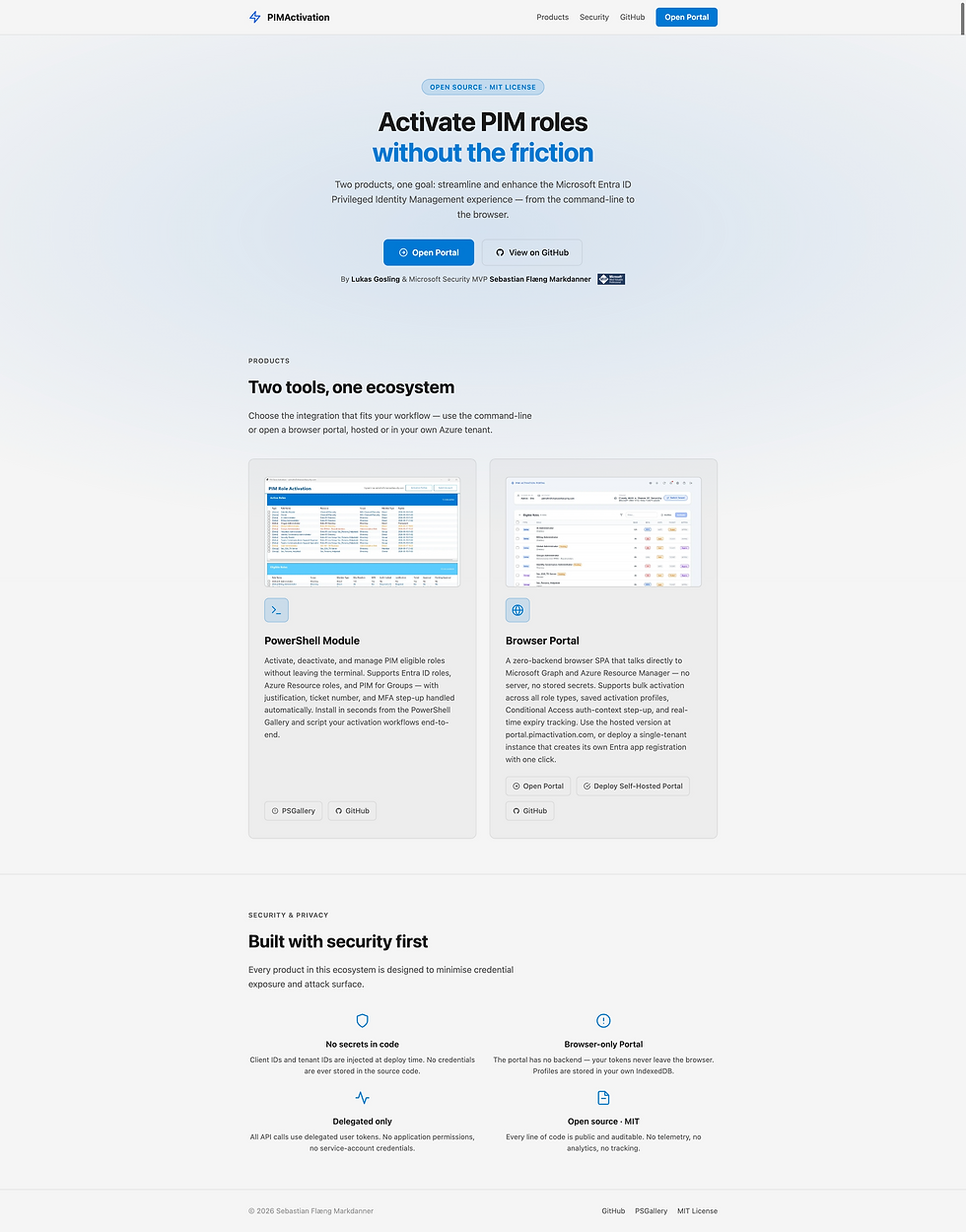
To better support the different solutions, including the PowerShell module, managed portal, and self-hosted portal - a landing page felt well deserved.
The solutions now have a home at pimactivation.com, a GitHub Pages-hosted website with links to the different solutions and GitHub repositories. (don't worry - it's got a dark mode if the browser is in a dark theme)
The New PIMActivation Portal
Direct link: https://portal.pimactivation.com
When we went through the design and architecture discussions for the solution, we wanted to ensure security stayed top of mind throughout the entire process. That meant avoiding any kind of backend, token cache, or unnecessary attack surface.
Therefore, the portal is fully contained within the browser’s sessionStorage and IndexedDB, with no backend whatsoever. The code is fully open source and MIT licensed.
This came with a few trade-offs in terms of cross-browser and cross-device functionality, but in this case, the pros heavily outweighed the cons.
While I won’t go through every single button in the portal, because honestly it’s much more fun to test it out yourself, let’s take a look at some of the highlighted features!
Overview

We have five primary sections in the portal: Header, Tenant Info, Eligible Roles, Active Roles, and Footer.
These sections remain persistent regardless of which OS, browser, or window size you access the portal from.
Header

The header contains a variety of quick actions, notifications, settings, and a support menu.
Within the support menu there are multiple options available, including bug reporting and an FAQ section.

Tenant Information

This section contains a few different informational components, but the real star of the show here is the tenant switcher.
This allows for cross-tenant PIM activations directly within the portal, without having to constantly sign in and out of multiple tenants when a guest account has PIM-managed roles assigned.

Eligible Roles

By default, all eligible role types are shown within the collapsible Eligible Roles section, with options to filter by type and select one, multiple, or all roles either for activation or to add to an Activation Profile.
When activating roles, regardless of the number selected, a single activation window is shown. This means the entered justification and ticket numbers are automatically reused across all selected roles in the activation request.
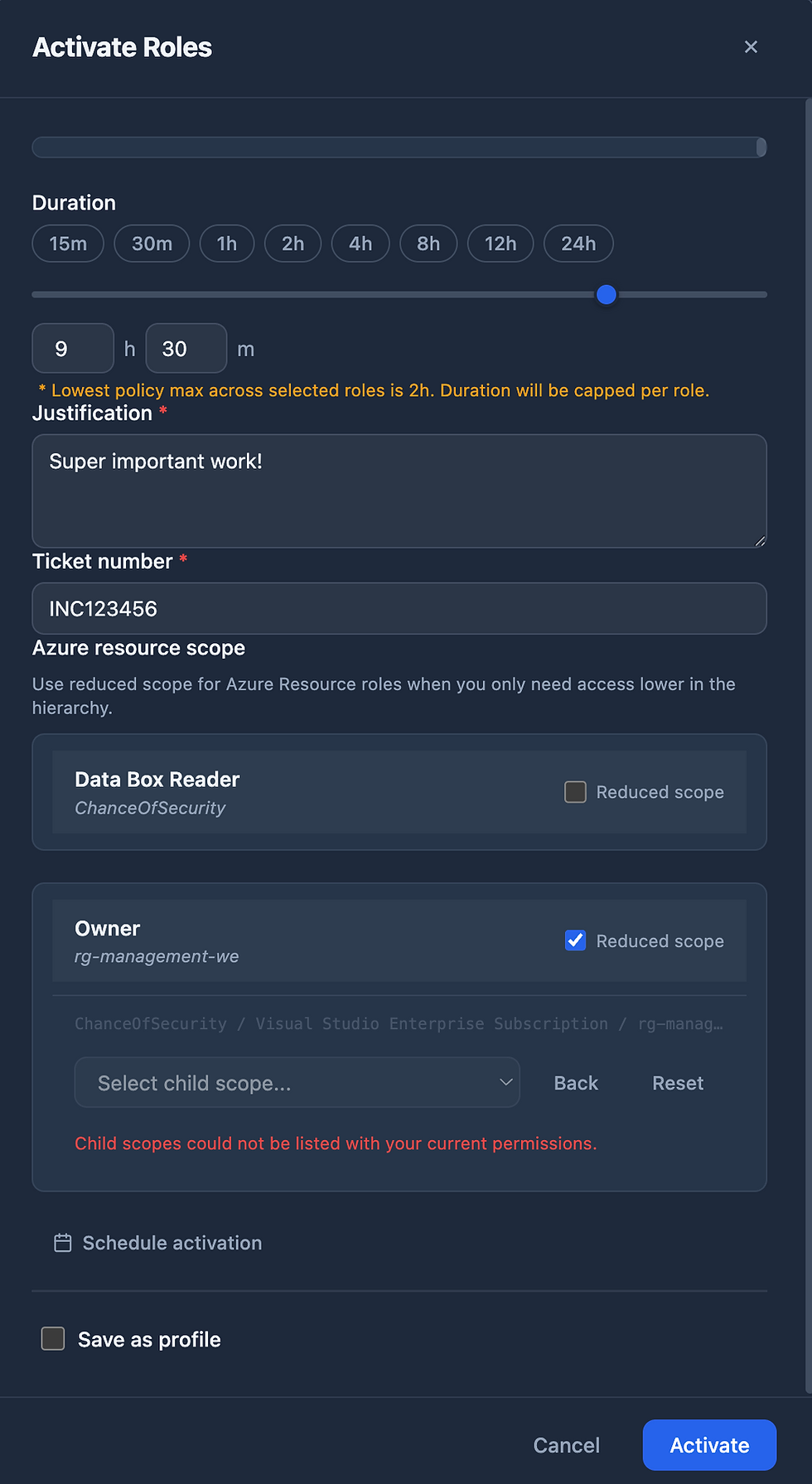
The portal also includes support for “Reduced Scope” on Azure Resource roles. This allows activations to be scoped further downstream instead of activating against the full assigned scope directly.
There are also options to schedule activations or save selected roles directly as an Activation Profile.
The activation duration is dynamic, meaning the maximum duration configured in the PIM policy for each role is always respected, regardless of the selected duration.
This happens on a per-role basis, allowing a single activation request to activate multiple roles with different durations simultaneously.
Activation Profiles are essentially quick-select custom groupings of multiple roles, providing a PIM-for-Groups-like experience without actually requiring role-enabled security groups.

Since the portal has no backend, these profiles do not automatically carry over between browsers or devices. However, profiles can easily be exported and imported as simple JSON files.
Active Roles

This section displays both permanently active roles as well as Just-in-Time PIM-activated roles, including their expiration date and time.
For roles that require approval, an ephemeral role entry is temporarily added to the Active Roles list while the activation request is pending approval.
Bulk deactivation is, of course, supported as well.
Footer

While this section is mostly just a shameless plug for our socials, it also serves as a quick anchor back to the landing page with direct access to the rest of the ecosystem.
Self-Hosted Portal
The Deploy to Azure button uses the deployment JSON available in the public repository to deploy the required Azure resources. However, it does require you to create an App Registration beforehand and provide the required values during deployment.
To deploy it, simply select the self-deployment option from the landing page:

The self-hosted deployment is effectively a point-in-time snapshot of the current codebase. This means future updates and enhancements will not automatically flow into your deployed instance.
You’ll either need to redeploy using updated templates over time, or maintain and update the solution yourself moving forward.
Installing PIMActivation As An Application
Since this is a PWA, it’s possible to install the portal as an application on both desktop and mobile devices alike.
Below are examples for Windows, macOS, and iOS. The process is pretty straightforward, so even though I can’t showcase every possible browser and OS combination, it shouldn’t provide too much trouble.
I mean, anyone reading one of my posts is obviously incredibly smart ;)
The exact experience depends on which browser you’re using. I’ll be showing Edge for Windows, and Safari for macOS and iOS.
Windows
To install the application on Windows, there are a few steps to go through:
Navigate to the portal and sign in

Click on the menu (...), then More tools -> Apps and finally Install this site as an app

Optionally modify the application name and click Install

Within the newly installed application, you can choose to Create a desktop shortcut and/or Auto-start on device login

That's it - you now have the application installed, can pin it to taskbar or whatever you choose

MacOS
(Pardon the danish)
While Edge on macOS would provide an experience nearly identical to Windows, Safari still seems to be the go-to browser for many macOS users. These are the required steps:
Navigate to the portal
First step is to navigate and sign-in to the pimactivation portal

Click on the Share menu and Add to dock

Optionally modify the app name, and click Add

That's it, it's now added to the dock for quick access!

iOS
(Pardon the danish)
To install the PIMActivation portal as an application on a mobile device, there are a few simple steps to follow:
Navigate to the portal
First step is to go to the portal, sign-in and then clicking on the menu (...) in the browser

Click the Share menu option

Within the Share menu, select Add to homescreen

Optionally choose a different name for the app, and click Add

That’s it. The portal application is now installed on your device, giving you access to a full PIM experience directly from your pocket!

These installation options provide faster and more streamlined access to the PIMActivation portal, resulting in a smoother, more modern, and more complete PIM experience.
Conclusion
PIMActivation started out as a PowerShell module meant to solve a frustrating problem: making PIM activations less painful. Since then, it has evolved into something much bigger than I originally imagined.
With the new PIMActivation Portal, we’ve taken the same core ideas — fast activations, fresh tokens, bulk operations, and cross-tenant usability — and made them accessible from virtually anywhere. Desktop, tablet, mobile phone, self-hosted, or managed service — the goal has always been the same: make PIM less annoying to work with.
Working together with Lukas on this project has genuinely been awesome, and seeing the community grow around the solution has probably been the coolest part of the whole journey.
The portal is fully open source, MIT licensed, and available today, whether you just want to use the managed version or deploy your own instance in Azure.
And yes… activating five roles from your phone while standing in line at the supermarket is now technically possible. You’re welcome.


It's impressive how PIMActivation has evolved into a PWA, prioritizing security with no backend whatsoever and keeping all data client-side. The cross-tenant PIM activations directly in the portal are a game-changer for administrators juggling multiple environments. This solution seems incredibly robust and user-friendly for anyone managing access, making tasks that often feel like playing sz games much smoother. Well done! 👍
This is an absolutely incredible evolution of an already amazing tool. You sir, have earned a permanent place in my Dock.
Amaze, amaze, amaze!!