
Introducing M365IdentityPosture: Community-Driven Identity Reporting for Microsoft 365

Have you ever felt that the native reporting options in the Microsoft Cloud are lacking?
Well, you’re not alone - let’s talk about it.

Visibility into your Microsoft Cloud identity and security configurations has never been more important… or more fragmented. While Microsoft offers native reporting options for specific parts of our environments, they are often too narrow, incomplete, or difficult to use without significant additional processing.
That gap led to the creation of M365IdentityPosture - a community-driven PowerShell module designed to simplify advanced reporting across Microsoft 365, Entra ID, Purview, and the broader Microsoft Cloud.
The goal is straightforward: provide a unified, scriptable way to generate actionable insights about your organization’s identity and security configuration.
In this post, I’ll officially introduce the module (even though it has technically been shadow-released for a few months), walk through installation, and explore the current capabilities.
Over time, M365IdentityPosture will hopefully evolve into a one-stop shop for identity and security posture reporting across the Microsoft Cloud, driven not only by myself but by the broader community as well.
That community effort is already well underway. I recently had the pleasure of building the Access Package Documentor together with the brilliant Microsoft Security MVP Christian Frohn (christianfrohn.dk).
Let’s take a look!
Table of Contents
The Rationale Behind The Idea
As briefly mentioned earlier, I kept running into situations where I thought:
“Why isn’t there a report that shows all of this?”
The more often that thought occurred, the clearer it became that I probably wasn’t the only one experiencing these gaps. As it turns out, I definitely wasn’t.
A few years ago, a client asked me to produce a quarterly report showing active and eligible roles across their environment. At the time, that information wasn’t easily visible in one place.
So I built a report.
That was the first time I created something that I realized could actually benefit the broader community. I eventually released it as a standalone solution and wrote an article about it.
That particular report isn’t part of the module yet, as I want to rebuild it to match the more modern and complete design used in the newer reports.
Since then I’ve learned a lot, discovered new reporting gaps, and had conversations with many brilliant people who have encountered the exact same challenges.
So my hope is that M365IdentityPosture can become a fully community-driven toolkit for Microsoft Cloud reporting, whether for recurring reports, one-off investigations, or anything in between.
With that said - let’s go through installation and usage!
Prerequisites
M365IdentityPosture builds on Microsoft Graph wherever possible, but also leverages additional modules when collecting data across the Microsoft Cloud.
As more portals and capabilities become available through Microsoft Graph, the module will be updated accordingly.
Module Dependencies
Currently, different reports require different modules.
The module dynamically loads and unloads dependencies as needed during each reporting phase. You do not need to import all modules up front.
Note: If a required module is missing, you will be prompted to install it. If it cannot be installed, the report will simply skip that phase.
The following modules are currently required and will be loaded automatically when needed.
Authentication Context Inventory dependencies
Microsoft.Graph.Authentication
Microsoft.Graph.Groups
ExchangeOnlineManagement
Microsoft.Online.SharePoint.PowerShell
Access Package Documentor dependencies
Microsoft.Graph.Authentication
Microsoft.Graph.Identity.Governance
Azure modules
(only required if Azure PIM reporting is enabled in the Auth Context report)
Az.Accounts
Az.Resources
Required Permissions
Because this is purely a reporting toolkit, all required permissions are read-only. I strongly recommend avoiding permissions with write access in order to keep things as tight as possible.
By default, reports use the Microsoft Graph Command Line Tools enterprise application (formerly Microsoft Graph PowerShell) with delegated permissions. These permissions must be granted to the user running the report.
Each report also supports custom app registration authentication using the -TenantID and -ClientID parameters for environments where more granular control is preferred.
Minimum permissions vary per report.
Authentication Context Inventory Report
Microsoft Graph API:
Directory.Read.All
Group.Read.All
Policy.Read.All
Policy.Read.ConditionalAccess
AuthenticationContext.Read.All
RoleManagement.Read.Directory
PrivilegedAccess.Read.AzureADGroup
InformationProtectionPolicy.Read.All
Service-Specific Roles:
Exchange Online
View-Only Organization Management
SharePoint Online
Global Reader
Azure
Reader role on subscriptions (for Azure PIM enumeration)
Access Package Documentor Report
Microsoft Graph API:
EntitlementManagement.Read.All
Directory.Read.All
How To Install M365IdentityPosture PowerShell Module
Installation is straightforward, as the module is available both on PowerShell Gallery and on GitHub.
Option 1: PSGallery (Recommended)
# Install from PSGallery
Install-Module -Name M365IdentityPosture -Scope CurrentUser

# Or install for all users (requires admin)
Install-Module -Name M365IdentityPosture -Scope AllUsers
Option 2: Manual Installation
Clone or download this repository
Copy to PowerShell modules directory
# Check available module paths
$env:PSModulePath -split ';'

# Copy to user module path (recommended)
$modulePath = "$HOME\Documents\PowerShell\Modules\M365IdentityPosture"
Copy-Item -Path ".\M365IdentityPosture\*" -Destination $modulePath -Recurse -Force
Importing the module
Regardless of installation method, simply import the module with:
Import-Module -Name M365IdentityPostureFirst Featured Capability Authentication Context Inventory Report
Using Authentication Contexts significantly improves security granularity across Microsoft environments (something I covered in my Authentication Context series).
Monitoring their usage, however, is a completely different beast.
If you’ve ever inherited an environment or been asked to determine where an Authentication Context is currently in use, with no proper documentation available, you know how painful that process can be.
That’s why I created this report.
The Authentication Context Inventory Report generates an HTML report showing:
All Authentication Contexts, and their usage across:
Sensitivity Labels
Entra ID groups
PIM for Entra roles
PIM for Groups
PIM for Azure resources
SharePoint sites
Conditional Access policies
Entra ID Protected Actions
It gathers every usage location currently available through supported APIs.
Unfortunately, it does not yet include the Microsoft Defender for Cloud Apps preview feature, but even without that it has proven extremely useful for documentation and troubleshooting.
Generating the AuthContext Report
To generate the report, simply run the following public cmdlet from the module:
Invoke-AuthContextInventoryReport
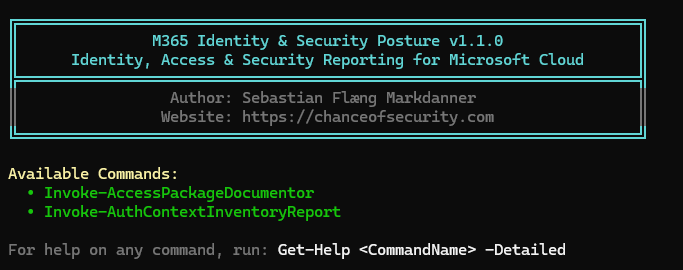
Once executed, the module walks through each phase of report generation while displaying progress directly in the console.

Using the Report
Once completed, the module generates an interactive HTML report.
The report can be used directly for:
Documentation
Change tracking
Security reporting
Regulatory and compliance requirements
It opens with an overview dashboard and allows navigation through the various data sections using buttons at the top.
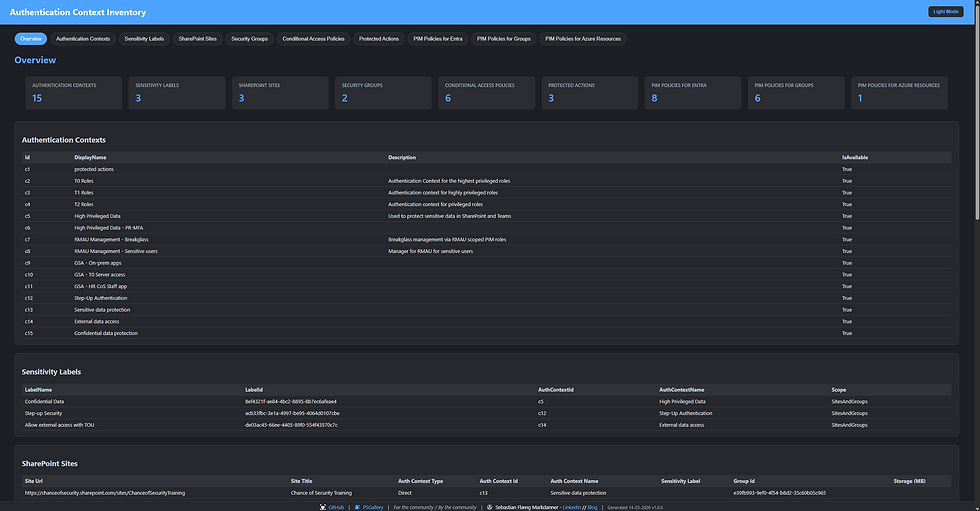
For those of us who don’t live exclusively in dark basements, you can also switch the report theme to light mode using the toggle in the top-right corner.

Second Featured Capability Access Package Documentor
Credits (and a bit of glazing)
While the Authentication Context report was pretty cool, and built purely by yours truly, this next feature is the one I’m most proud of.
Back in January 2026, I asked a simple question in the EMS Discord (aka.ms/m365EMSDiscord):
“Does anyone know of a reporting tool for Access Packages?”
That single question led to a lot of conversations, new friendships, and eventually an entirely new tool.
The Access Package Documentor (APD) was built together with my friend Christian Frohn, as mentioned earlier.
Christian has been an incredible collaborator throughout the whole process, from brainstorming ideas and writing code, to troubleshooting and gathering feedback from the community.
That feedback included insights from Nico Wyss, the incredible mind behind the Access Package Builder.
This feature simply wouldn’t exist in its current form without the many late-night discussions and collaboration with Christian.
So if you’re the one person reading this who hasn’t seen his blog yet - go check it out:
Alright, enough glazing.
Let’s get into the feature itself!
APD: The idea behind it
Native reporting for Access Packages is essentially non-existent.
Getting a clear overview, especially in larger organizations with many catalogs, packages, and resources, can quickly become painful.
While smaller environments with only a handful of packages may not feel this pain as strongly, having proper documentation is still extremely valuable for compliance, governance, and risk analysis.
The goal of the Access Package Documentor is to provide a single report showing everything, including:
Catalogs
Access Packages
Policies
Resources
Separation of Duty conflicts
Orphaned resources
Custom Extensions
This report is designed to be useful for both:
Technical administrators doing daily operational work
Leadership and governance teams needing visibility into access management
Generating the Access Package Documentor Report
Like all reports in the module, generation is straightforward.
Simply run the command and follow the progress in the console:
Invoke-AccessPackageDocumentor

Depending on your configuration, you may need to consent to the required permissions

Once the run is complete, the HTML report will open automatically.
Navigating The APD Report
There are quite a few features built into the report, and they are honestly best experienced by generating one yourself.
Still, let’s walk through the general structure and features.
Initial Screen
The first view presents a zoomed-in visual overview of your catalogs.
You can zoom in, zoom out, or fit the view using the controls in the top-right corner, or simply use your mouse wheel.
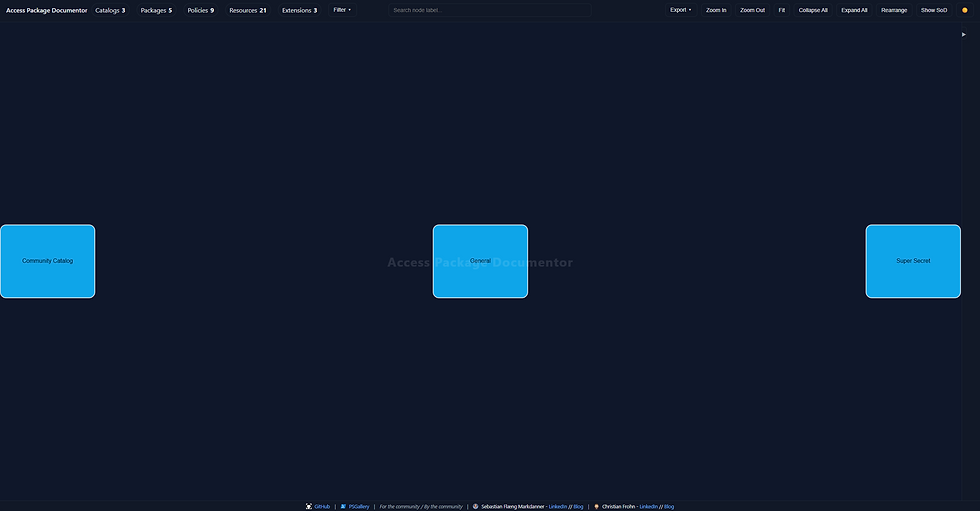
Top Left-Hand
In the top-left corner, you’ll find a quick overview of:
Catalogs
Packages
Policies
Resources
Custom extensions
These counters simply provide a high-level summary of the environment.
Next to the overview you’ll find the Filter panel, which allows you to scope the data shown in the visualization. Filtering also dynamically updates other filter options to ensure they remain relevant.

Top Right-Hand
On the opposite side you’ll find several controls including:
Zoom options
Separation of Duty toggle
Collapse/Expand all nodes
Node rearrangement
Theme switching
Export options
The export menu allows the report to be exported as:
Markdown
JSON
PNG
JPEG

Top Middle - Searchbar
Right in the middle of the interface you’ll find the search bar.
Search results are highlighted directly in the graph and show where each match exists within catalogs and access packages with tags directly in the results dropdown.
Clicking a result will automatically zoom into the relevant node.

Expanded View
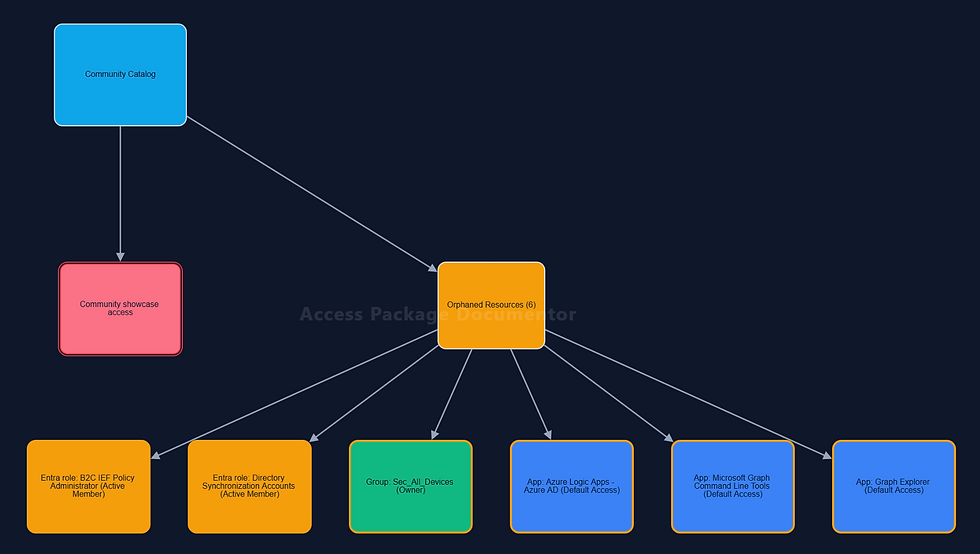
The central area of the report displays a color-coded hierarchical map of your Access Package configuration.
Each resource type has its own color for improved readability.
Nodes can be expanded or collapsed either by:
Double-clicking them
Using the Collapse/Expand controls

Viewing Details
Clicking any node displays detailed information in a panel on the right side.
The information shown depends on the node type.
For example, selecting a policy node shows policy configuration details.

Tracking Orphaned Resources
Resources added to a catalog but not used in any Access Package can be difficult to track in the portal.
Normally this requires navigating each package individually or querying the API.
To simplify this, the report includes logic to detect orphaned resources.
These appear using the same color coding as their resource type, but with a yellow border for enhanced visibility.
This was a quick overview of version 1 of the Access Package Documentor.
Just like the rest of the module, this feature is designed purely for reporting, not for creating or managing Access Packages.
Running the report on a schedule allows organizations to track changes over time and quickly detect unexpected configuration changes, improving both security visibility and governance.
Conclusion: From Idea to Toolkit — Now Let’s Build It Together
M365IdentityPosture started with a simple thought:
There has to be a better way to report on identity and security configurations across Microsoft 365.
Over time that thought turned into scripts, then tools, and eventually the module you’ve seen in this post.
The goal isn’t to replace Microsoft’s native portals or reporting features. Those serve an important purpose. Instead, M365IdentityPosture aims to fill the gaps where visibility, documentation, and analysis become difficult as environments grow in size and complexity.
With the Authentication Context Inventory Report, you can quickly see where Authentication Contexts are used across your environment.
With the Access Package Documentor, you gain a clear visual overview of Identity Governance configurations that would otherwise require a lot of manual digging.
And this is just the start.
The vision for M365IdentityPosture is to grow into a community-driven toolkit for identity and security posture reporting across the Microsoft Cloud.
Try the module, explore your environment, and if you find something that should have a report but doesn’t yet…
well, that sounds like a perfect pull request waiting to happen.
And if you want to discuss reporting gaps or potential features, feel free to reach out and join the conversation.
Because if there’s one thing the Microsoft Cloud never runs out of…
it’s things we wish we had a report for.


Comments